Customer Support Team
At SK Technology, our Customer Support Team is dedicated to delivering exceptional service to both existing and prospective customers. We believe that outstanding customer support is the foundation of long-term business relationships and customer success. Our primary objective is to ensure customer satisfaction by resolving issues efficiently, providing timely assistance, and delivering accurate solutions. We support users across our software platforms through multiple communication channels, including our ticketing system, live chat, email, WhatsApp, and phone support
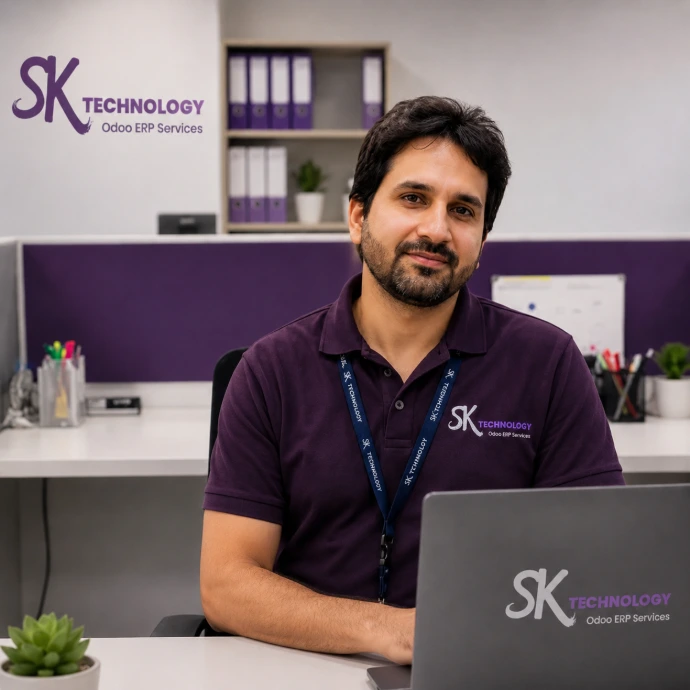
Taimoor Khan
(Chief Marketing Officer)
Build and strengthen relationships with customer, Work closely with customer and internal teams to ensure successful collaboration, customer satisfaction, and long-term business success.
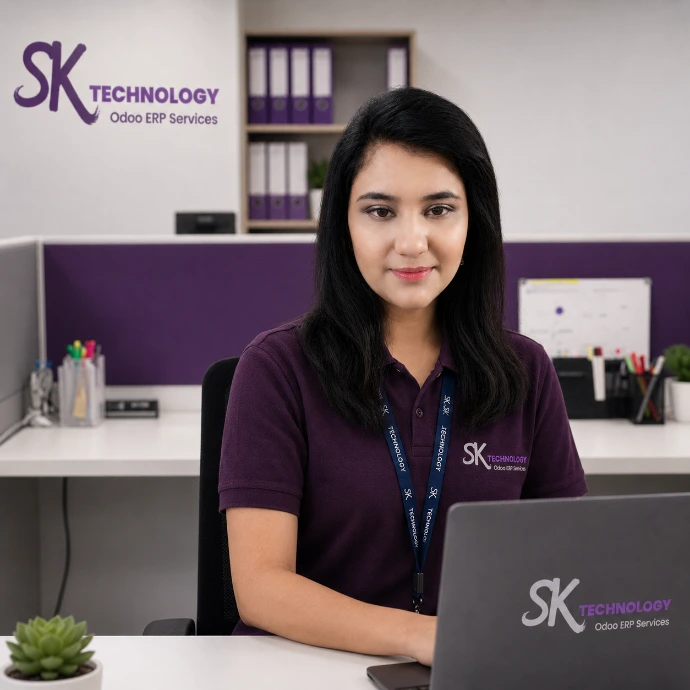
Samman Batool
(Customer Support Executive)
Professional support through tickets, live chat, and phone calls. Working closely with our development team, you will help ensure customer satisfaction and contribute to the continuous improvement.
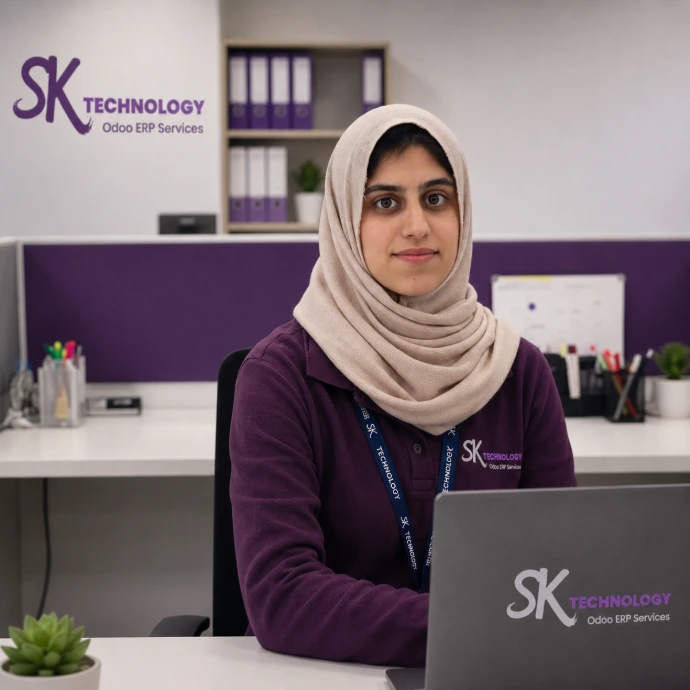
Amal Fatima
(Customer Support officer)
Responsible for assisting customers with their queries, resolving issues, and providing timely support through tickets, live chat, and phone calls. You will coordinate with internal teams to ensure effective solutions,
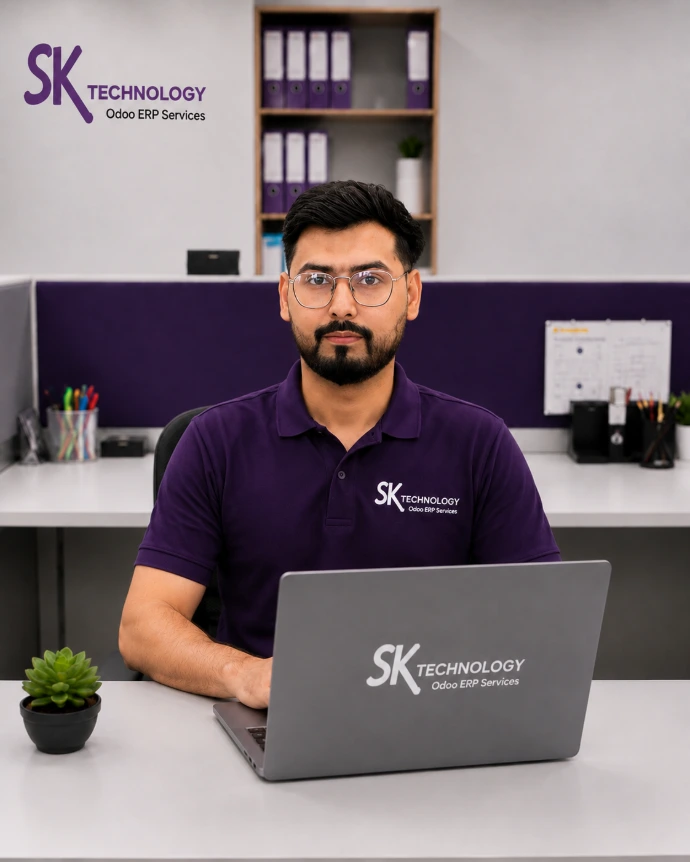
Saeed Afridi
(Customer Success Associate)
Ensures seamless support of customers by addressing inquiries, resolving requests, and fostering satisfaction with the Odoo product. This role emphasizes reactive support, efficient task management, and collaboration with internal teams to enhance the customer experience.
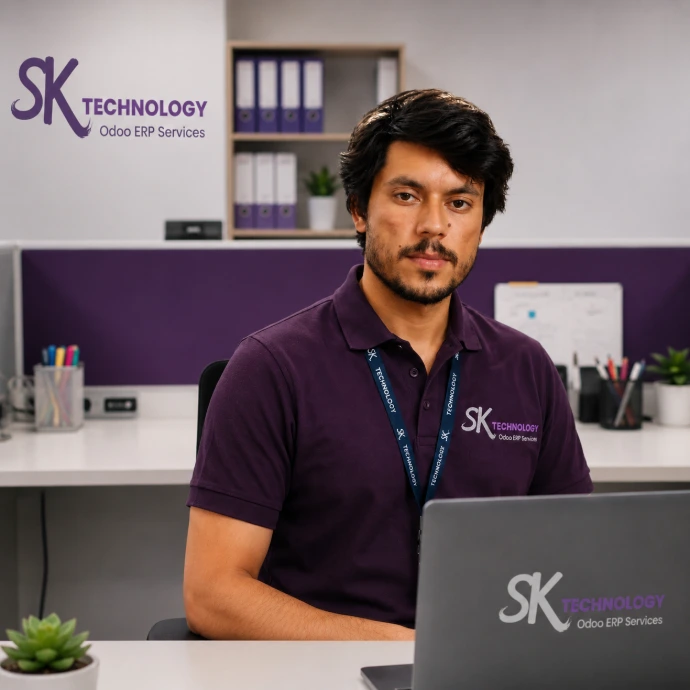
Kamran Khan (Customer Care Specialist)
We build long-term relationships with our customers by supporting them throughout their Odoo journey— we deliver a seamless experience, ensuring customers achieve maximum value from their Odoo investment and continued business success.
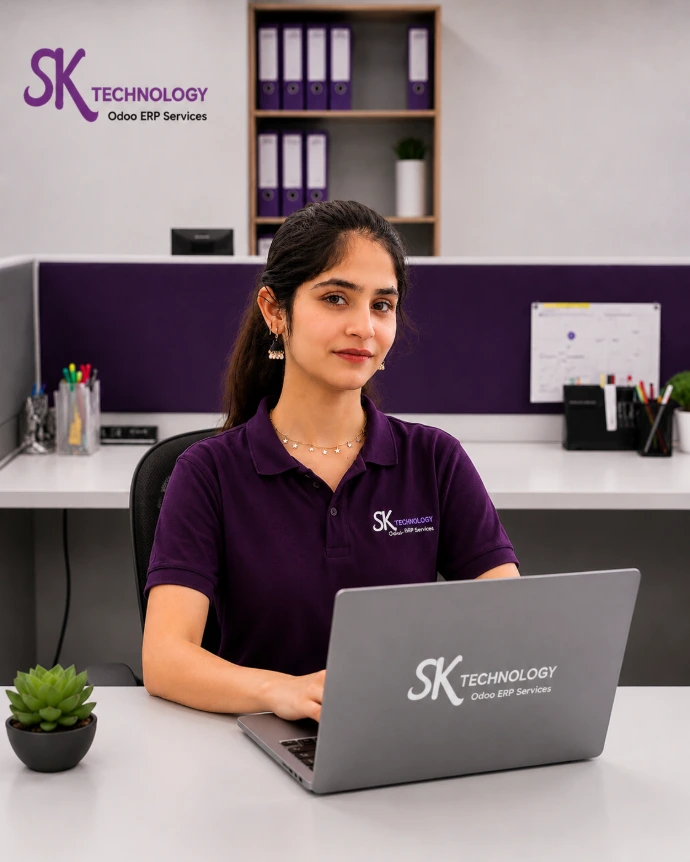
Fareeha Nazir (Customer Helpdesk Specialist)
Deliver fast and efficient customer support through Odoo Helpdesk to streamline support operations and improve customer satisfaction. Our solutions ensure every customer request is tracked, managed, and resolved efficiently.
SK Technology team of Odoo Technical Consultants, Odoo Functional Consultants, Business Analysts, and Data Analysts With AI Automation to help organizations streamline operations, improve productivity, and make data-driven decisions.
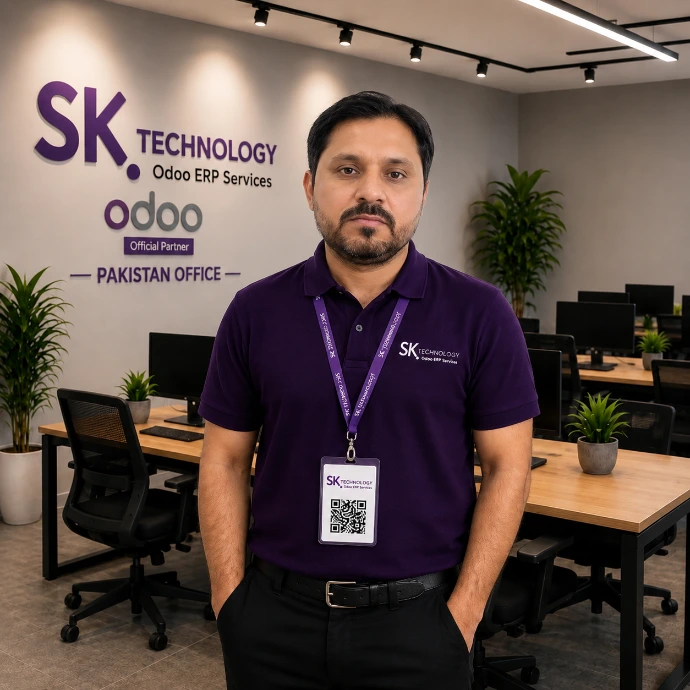
Shakil Khan
Helping Businesses Succeed with Odoo ERP & AI | Implementation Expert & Solution Architect/Provider | 17+ Years Experience
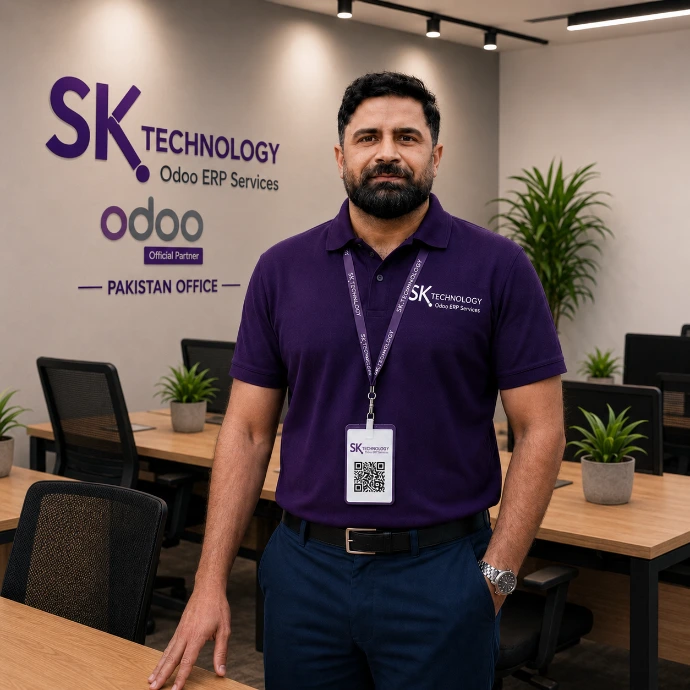
Muhammad Imran
Odoo Techno-Functional Consultant | Project Manager | Data Migration | Solution Architect | 10+ Years of Experience
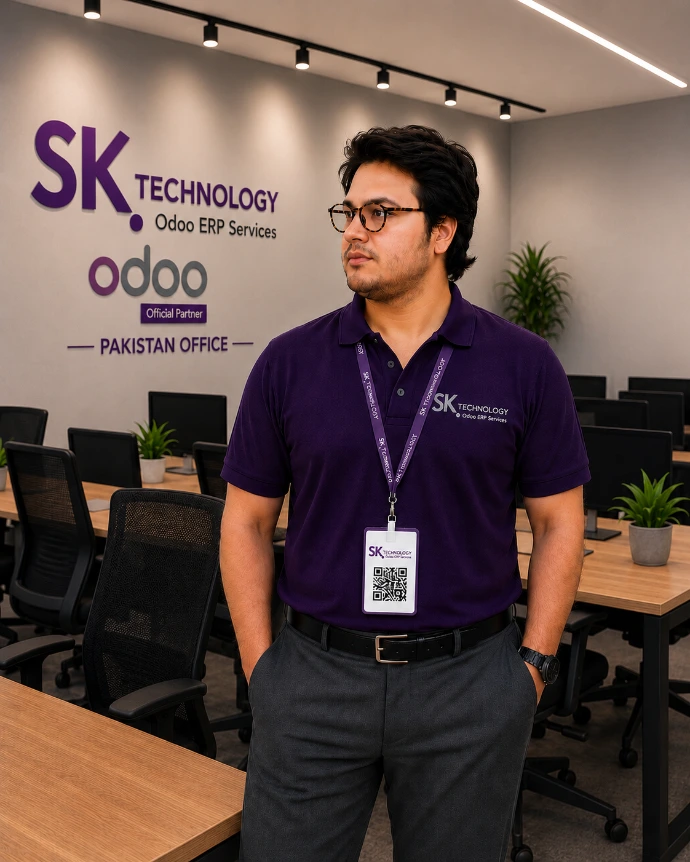
Sadnan Khan
Senior Developer | Odoo Technical Lead | Custom Modules | Integration Specialist | Server Management | 7+ Years of Experience
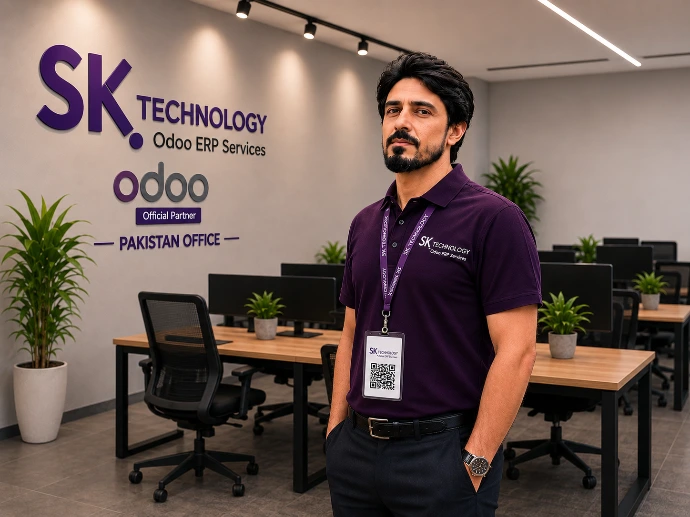
Abdul Aziz
Odoo ERP Specialist | Python Developer | Custom Modules | Integrations | Business Process Optimization| Amazon, Shopify & eCommerce Integrations | 6+ Years of Experience
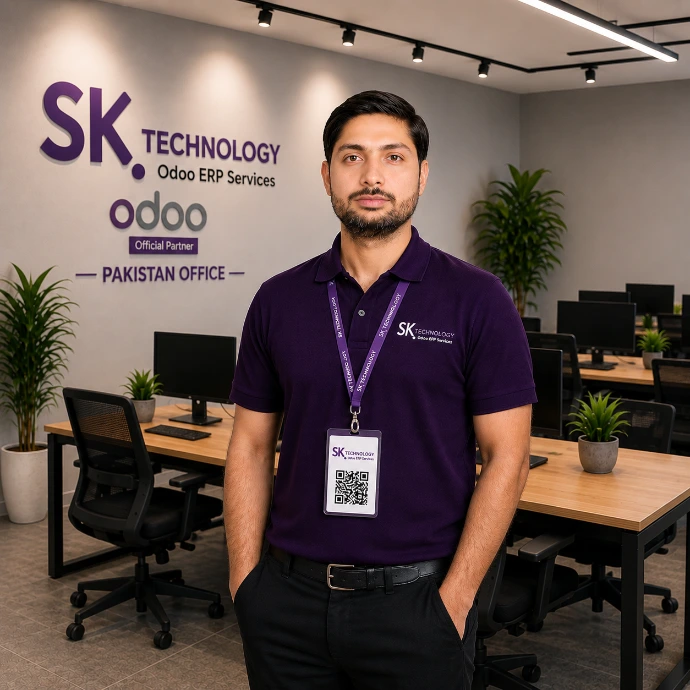
Umair Sarwar
Certified Odoo Functional Consultant | GAP Analysis | Business Workflow Design | Accounting & Finance Expert | Odoo V18 Certified | 7+ Years of Experience
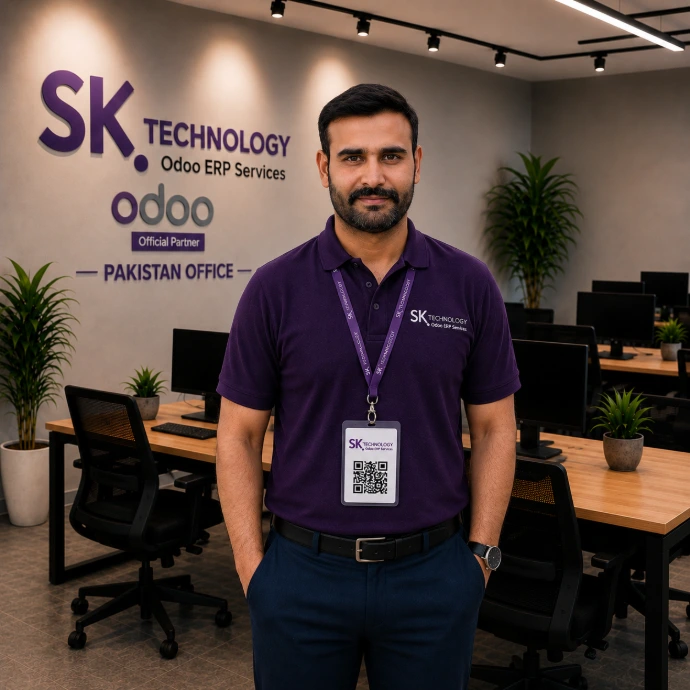
Mazharullah Wazir
Odoo Developer | Python Developer | PostgreSQL | Odoo Customization Expert | API Integrations | Third-Party API Integrations | 6+ Years of Experience
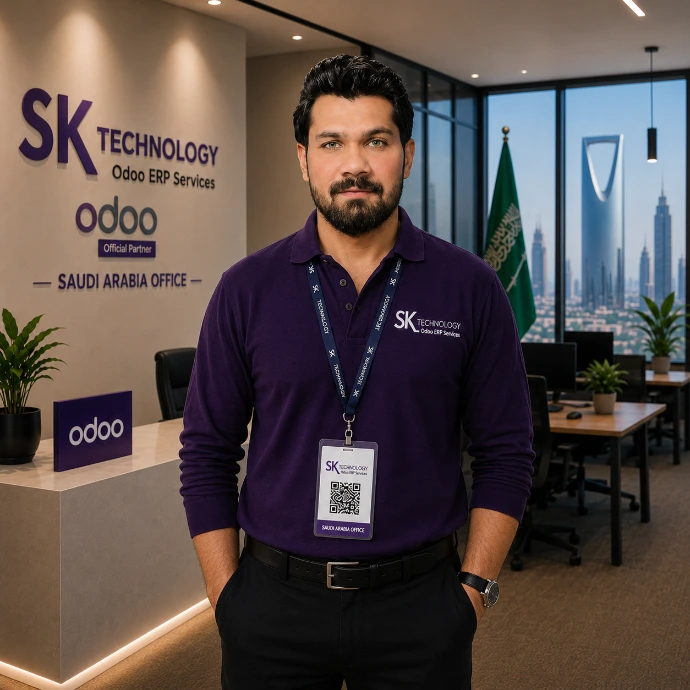
Awais Hassan
Senior Odoo Functional Consultant | Odoo Accounting Specialist | Business Process Consultant | CPA Qualified | ZATCA & GOSI Compliance| 10+ Years of Experience
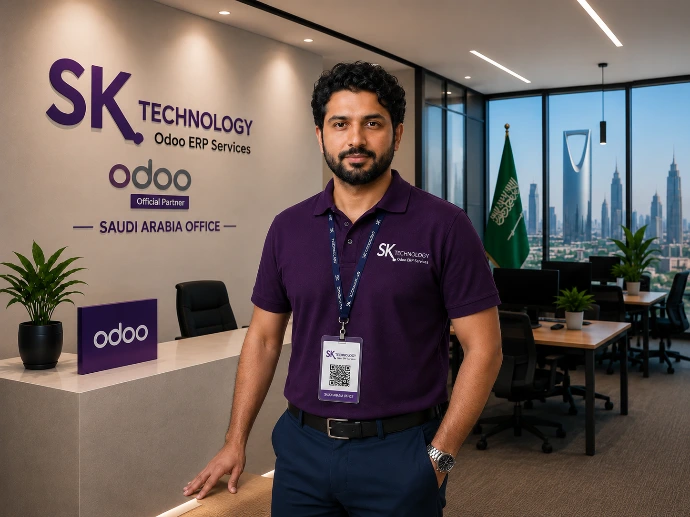
Muhammad Ismail
Senior Odoo ERP Developer | Backend Development | Custom Workflows | Third-Party Integrations | ZATCA & GOSI Compliance| 6+ Years of Experience
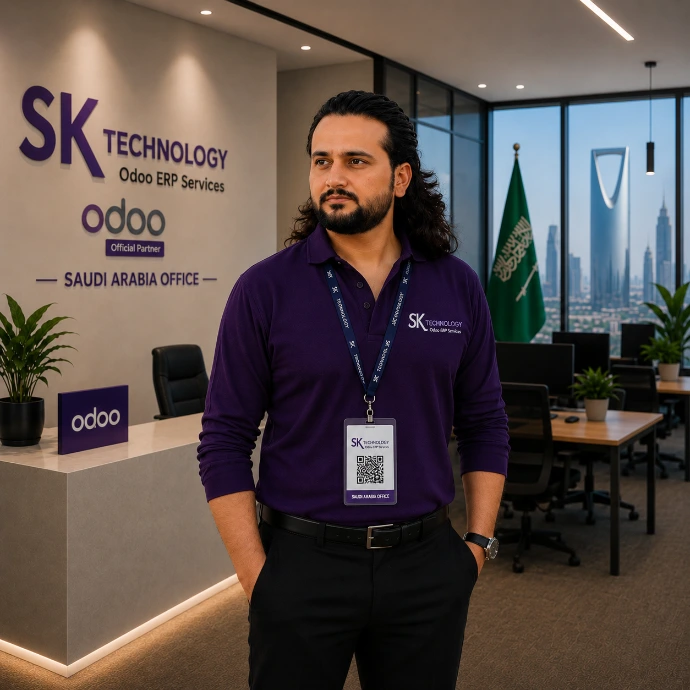
Usman Khan
Python Developer | Sage 300, Zoho, Amazon, Tamara & Tabby Integrations | ZATCA E-Invoicing | AI-Powered ERP Automation | 6+ Years of Experience
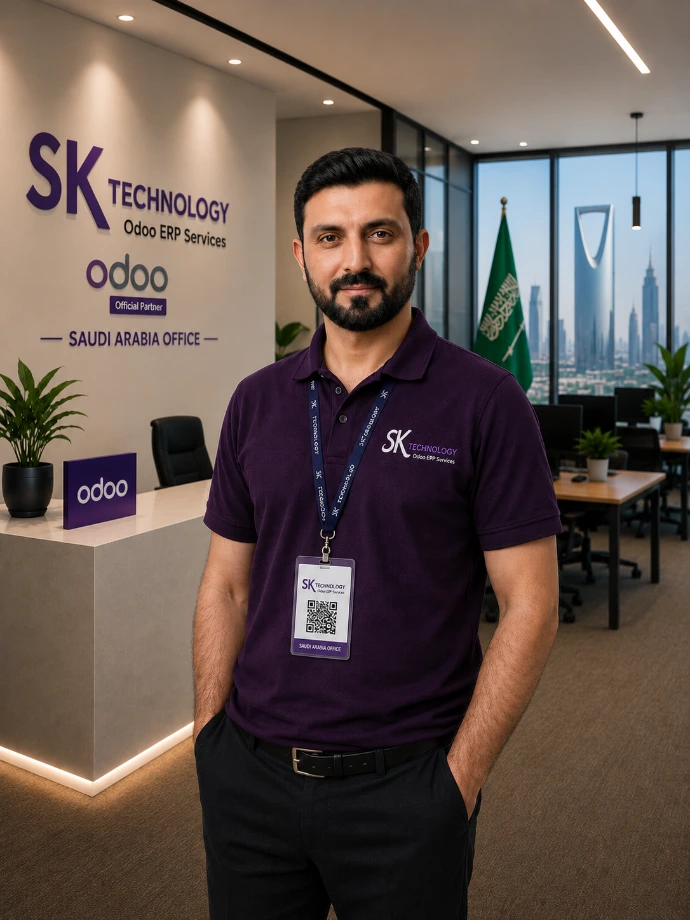
Zubair Ali
Full Stack Odoo Developer | Payment Gateway Integrations | Amazon Payment Services | Moyasar | Tamara | Saudi VAT & ZATCA Compliance | 6+ Years of Experience
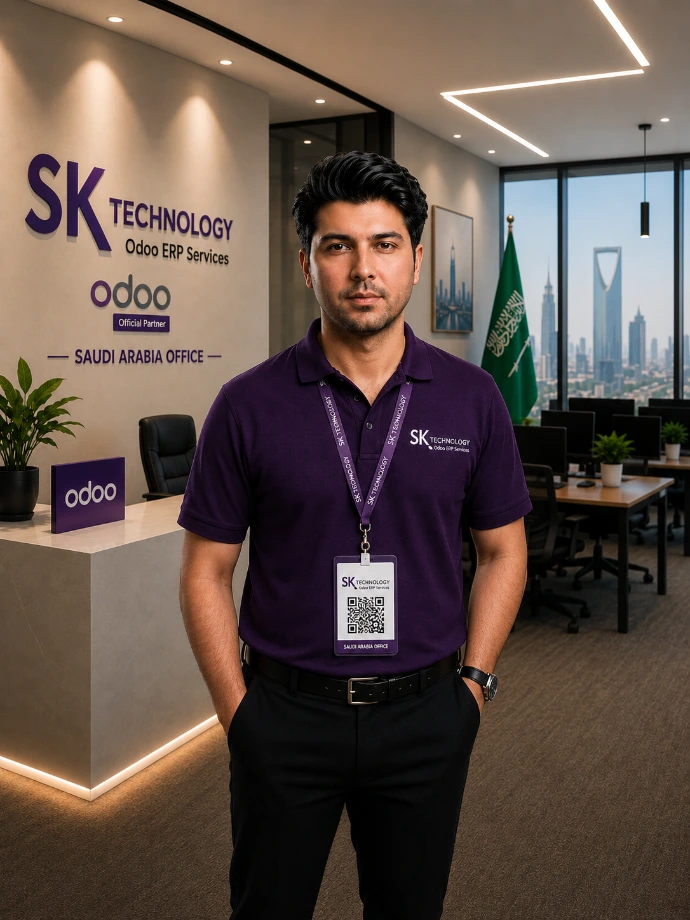
Aftab Khan
Senior Odoo ERP Developer | Backend & Frontend Development | Python | PostgreSQL | Saudi Localization Expert | ZATCA E-Invoicing |5+ Years of Experience
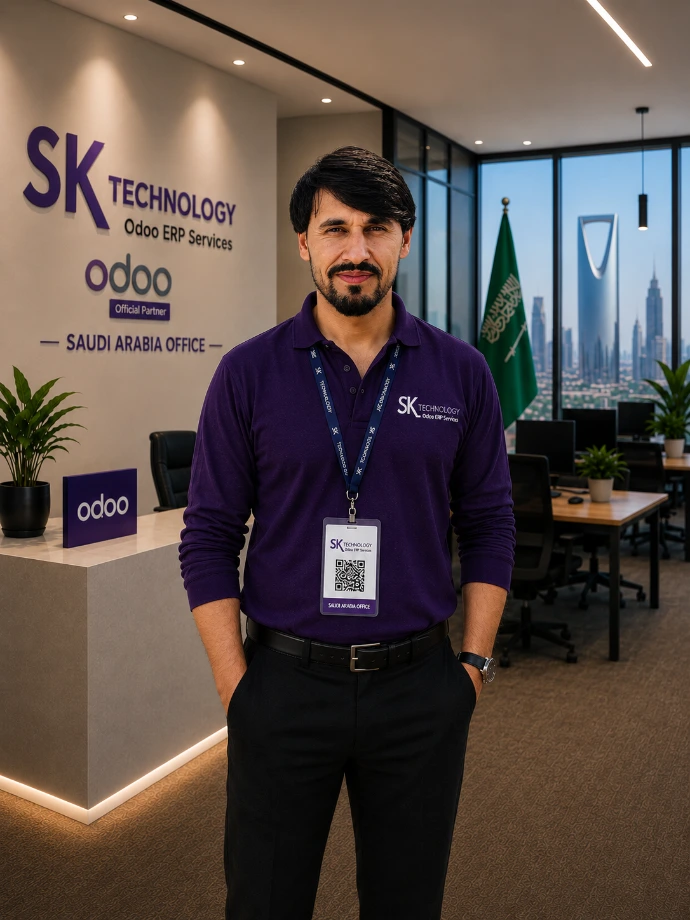
Asmat Ullah
Senior Odoo Developer | Python & PostgreSQL Expert | Saudi Localization | ZATCA Phase 1 & Phase 2 | Odoo Custom Development |5+ Years of Experience
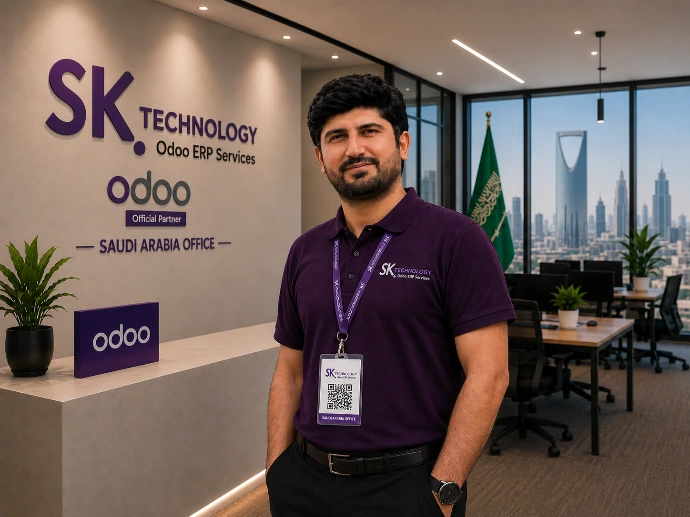
Hayat Noor
Odoo ERP Developer | Python | PostgreSQL | Saudi Localization Expert| Odoo Migration & Upgrades| Odoo Custom Development | Custom Module Development |API Integrations |4+ Years of Experience
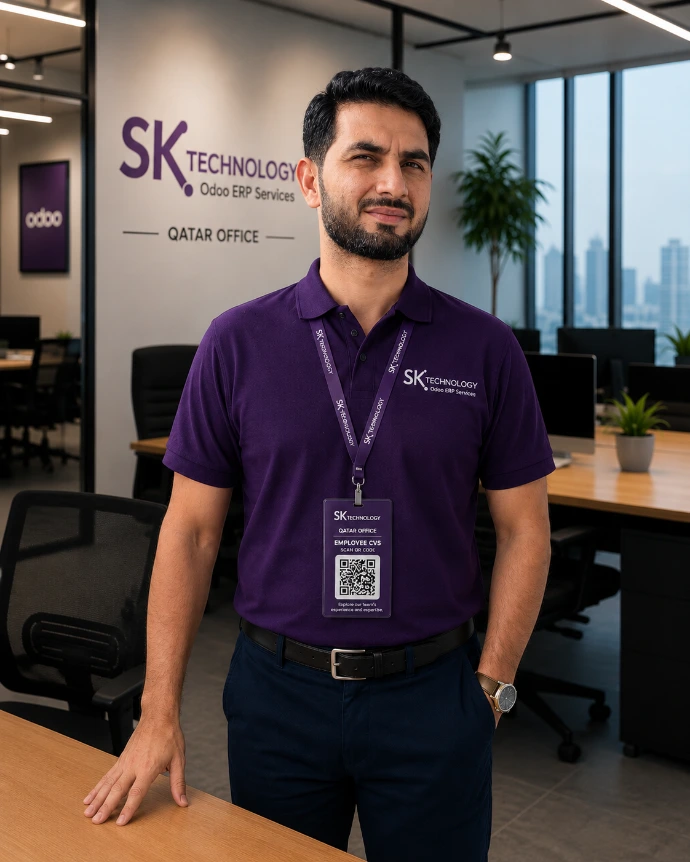
Waheed Ullah
Odoo ERP Developer | Python Developer | PostgreSQL | Full Stack Odoo Expert | Custom Module Development | Portal Development | API Integrations | Odoo Migration & Upgrades |4+ Years of Experience
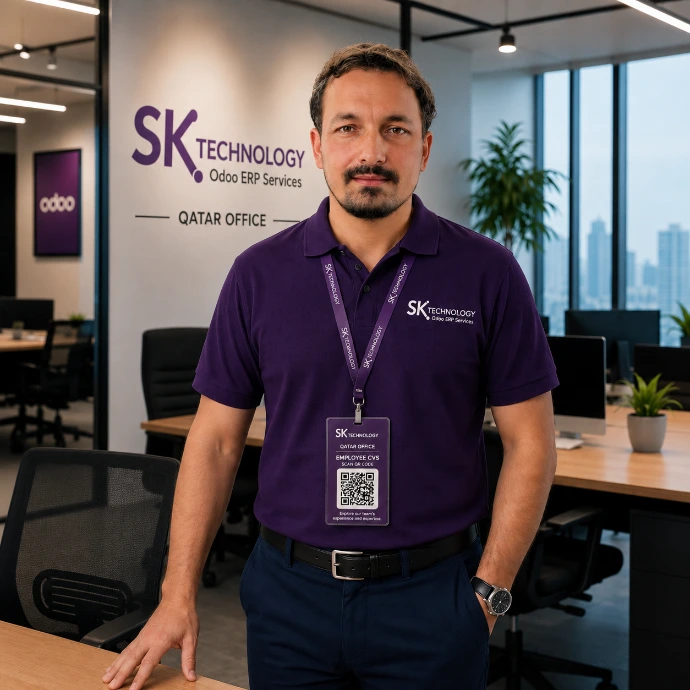
Irfan Ullah
Senior Odoo ERP Developer | Python Developer| Full Stack Odoo Expert | Custom Module Development | Portal Development | API Integrations | Odoo Migration & Upgrades |5+ Years of Experience
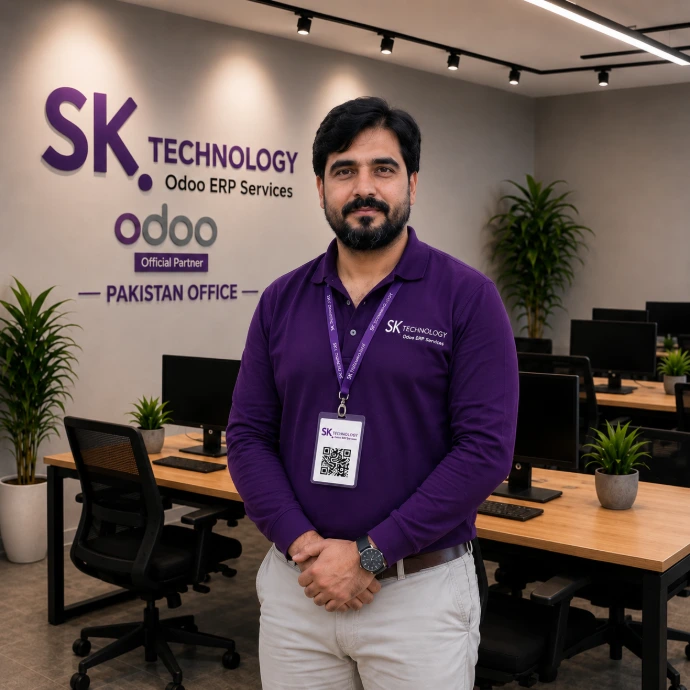
Muhammad Nouman
Odoo Developer Odoo Custom Modules | Odoo Migration & Upgrades | Amazon, Shopify & eBay Integrations |4+ Years of Experience
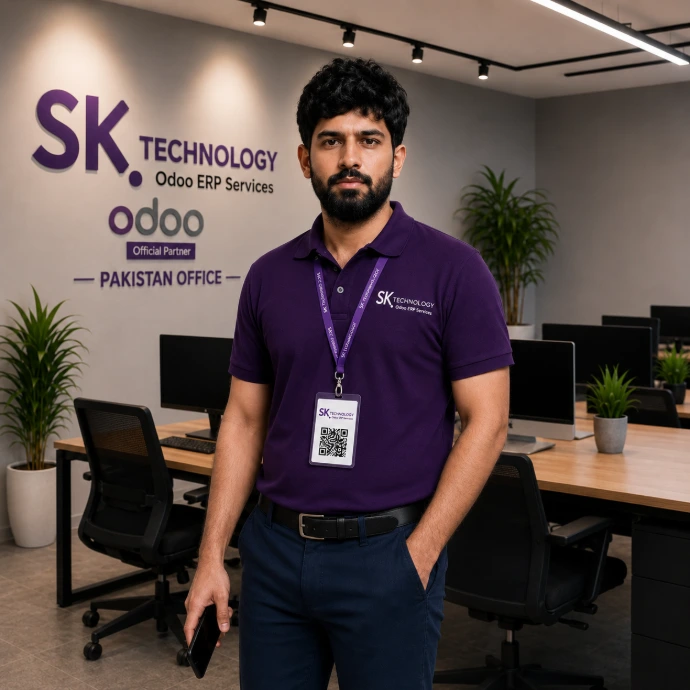
Muhammad Tariq
Odoo Developer | Python Developer | PostgreSQL | Odoo Custom Modules | API Integrations | Amazon & Shopify |4+ Years of Experience
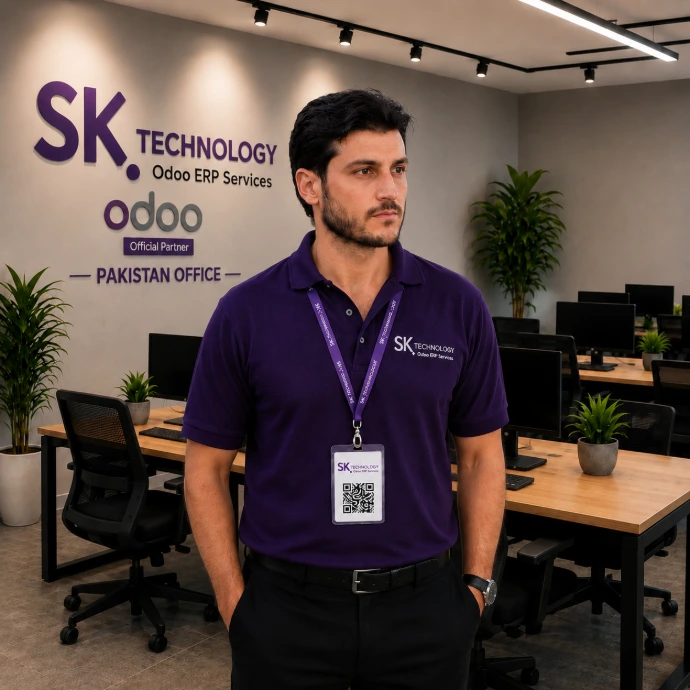
Yasin Ullah Khan
Odoo ERP Developer | Python Developer | PostgreSQL | Odoo Custom Modules | API Integrations |4+ Years of Experience
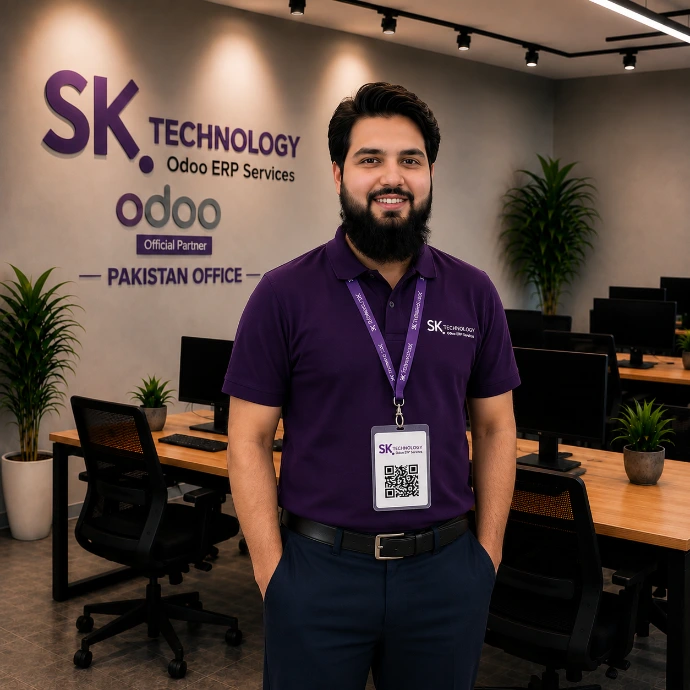
Kaleem Khan
WordPress Developer | WooCommerce Expert | Elementor Pro | Custom Theme & Plugin Development | Website Optimization | 6+ Years of Experience
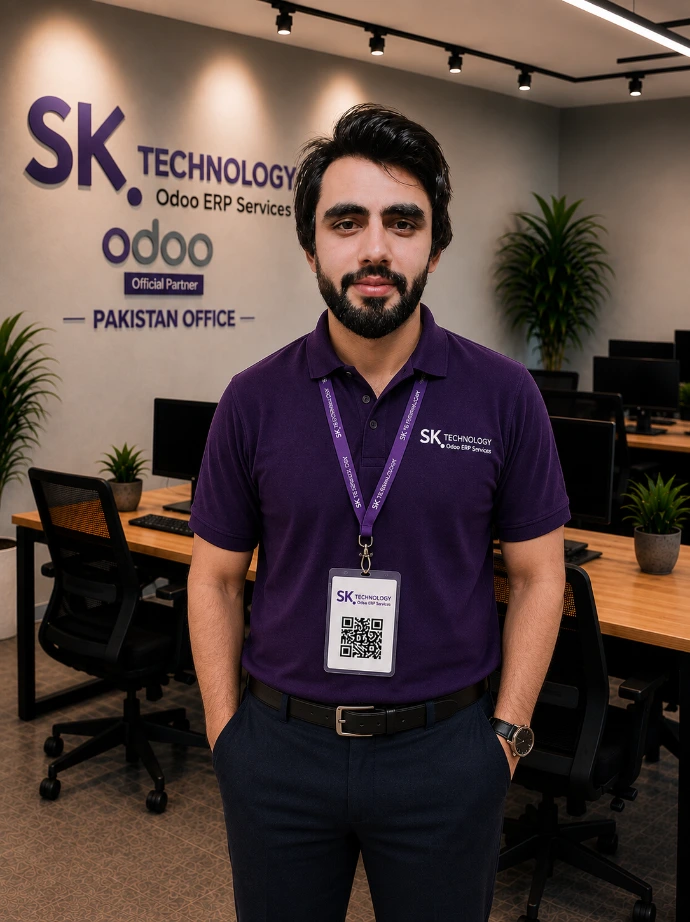
Nadeem Khan
Odoo Developer | Python/ JS Developer | Dashboard | Odoo Customization Expert | API Integrations | Third-Party API Integrations | 5+ Years of Experience
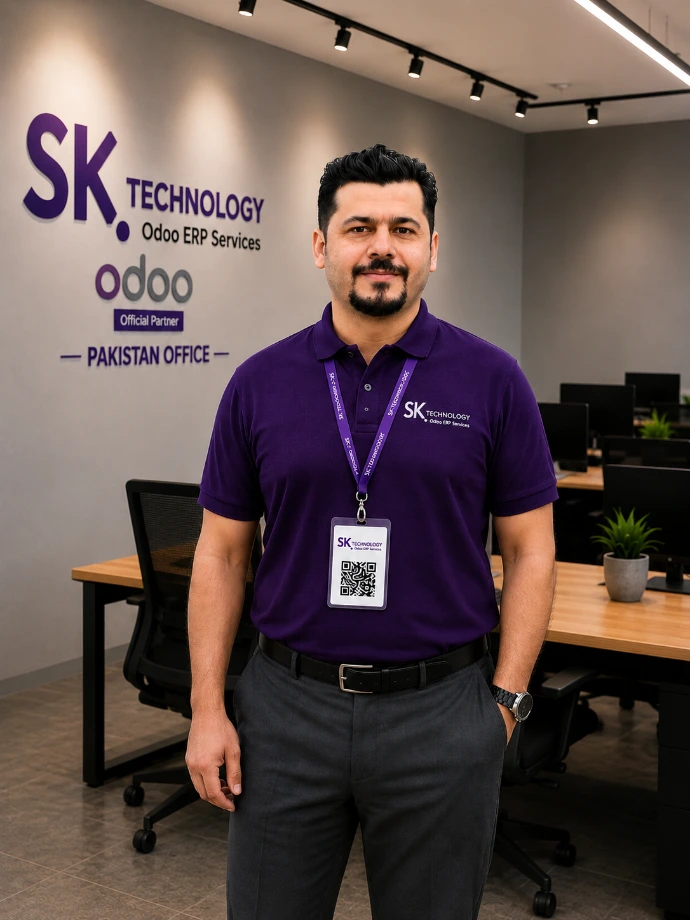
Shafiq Khan
Certified Odoo Functional | Date Expert | Business Workflow Design | Accounting & Finance Expert | Odoo V18 Certified | 7+ Years of Experience
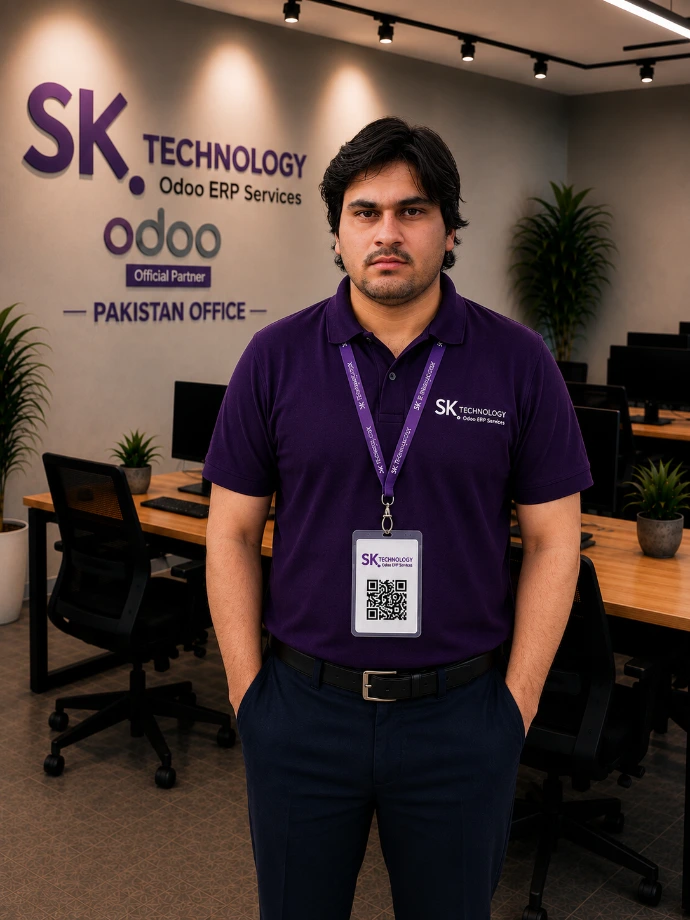
Tanveer Khan
Certified Odoo Functional | GAP Analysis | Business Workflow Design | Accounting & Finance Expert | Odoo V18 Certified | 4+ Years of Experience
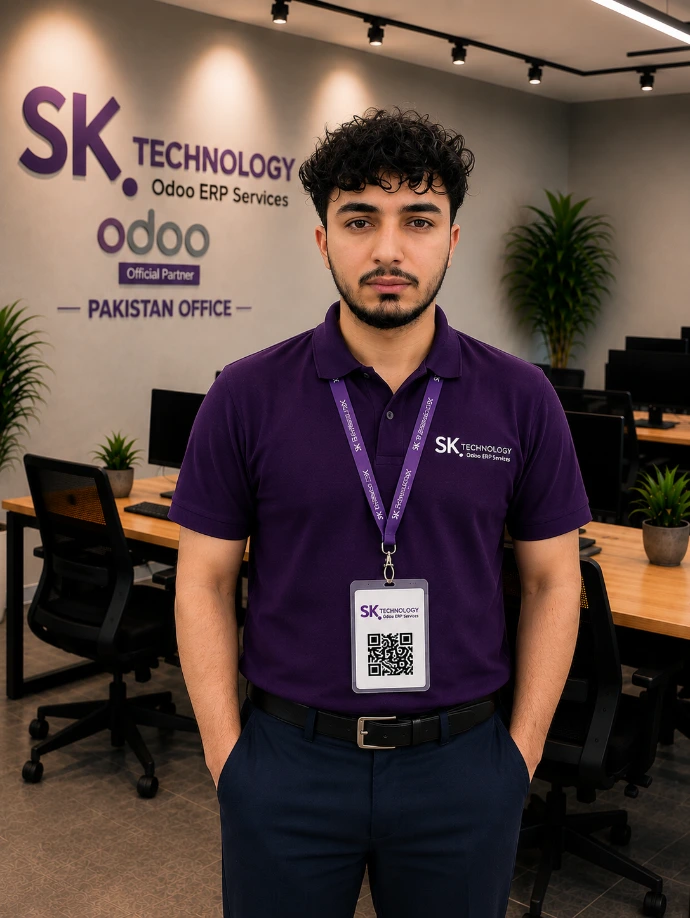
Haroon Khan
Odoo Developer | Python Developer | PostgreSQL | Odoo Customization Expert | API Integrations | Third-Party API Integrations | 6+ Years of Experience
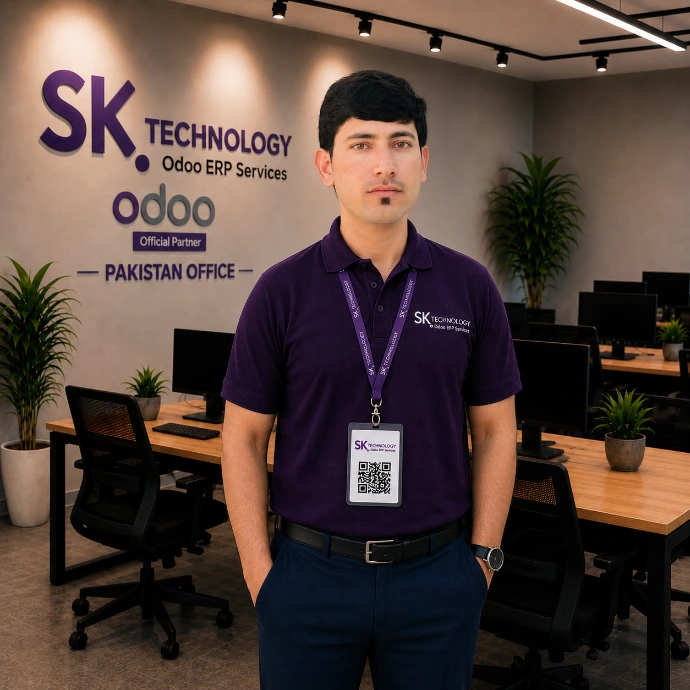
Arif Ullah
Certified Odoo Functional | GAP Analysis | Business Workflow Design | Accounting & Finance Expert | Odoo V18 Certified | 5+ Years of Experience
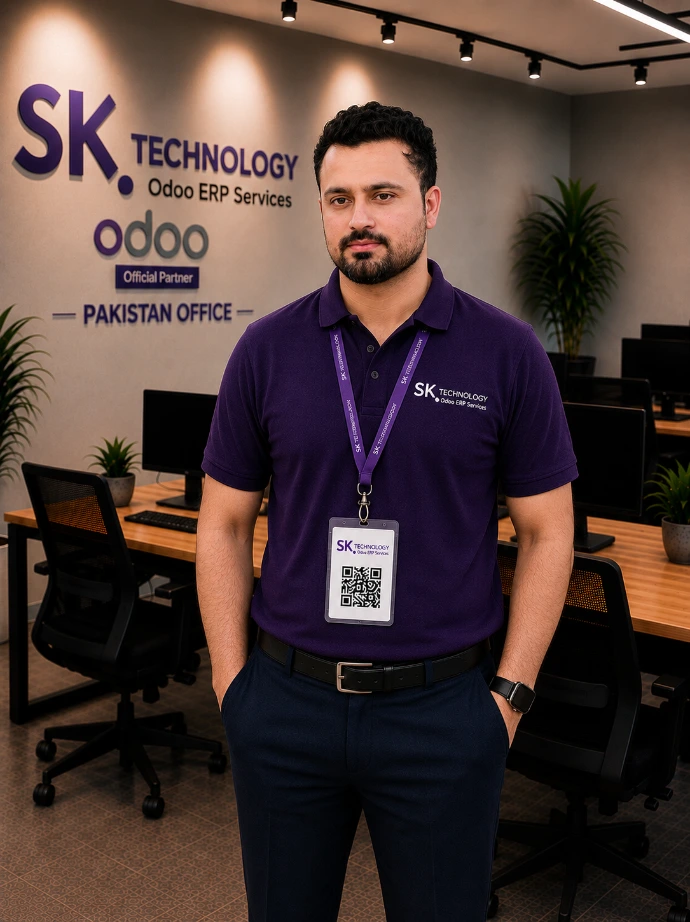
Zahoor Waxeer
Odoo Developer | Python Developer | PostgreSQL | Odoo Customization Expert | API Integrations | Third-Party API Integrations | 4+ Years of Experience
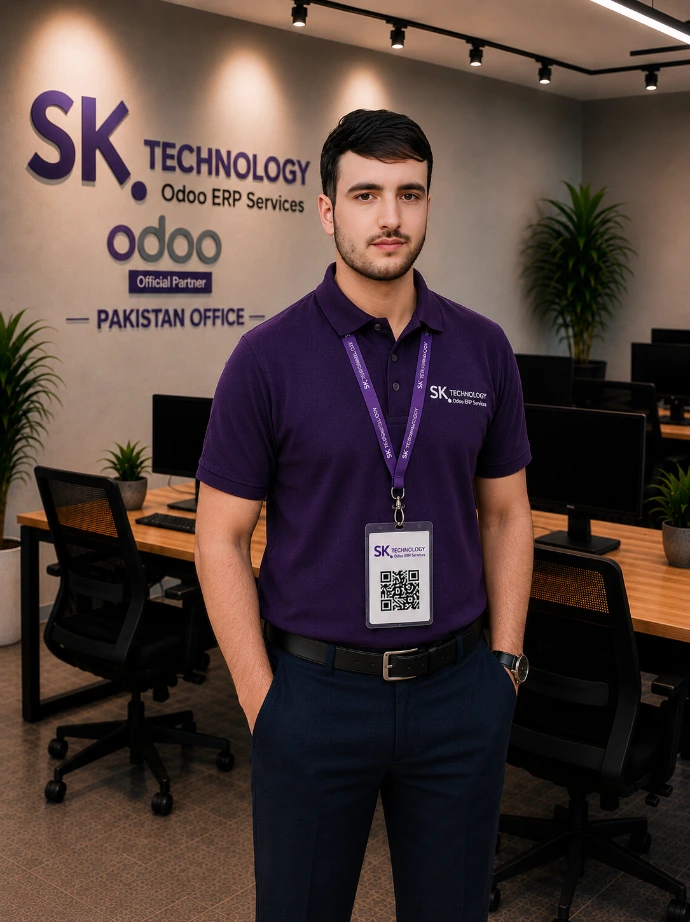
Murtaza Khan
Odoo Developer | Python Developer | PostgreSQL | Odoo Customization Expert | API Integrations | Third-Party API Integrations | 3+ Years of Experience
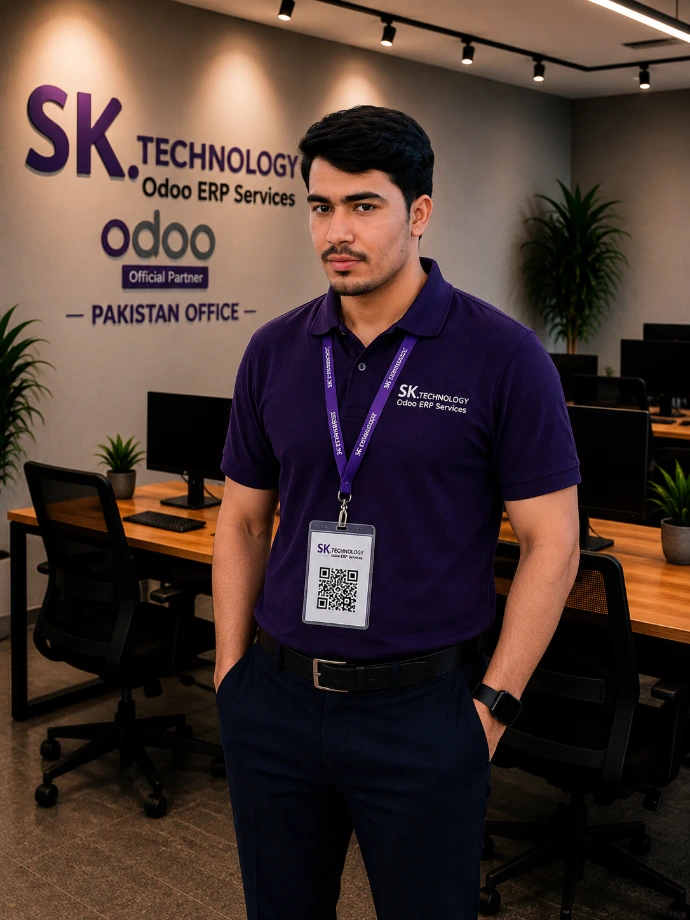
Jamshad Khan
Odoo Developer | Python Developer | PostgreSQL | Odoo Customization Expert | API Integrations | Third-Party API Integrations | 4+ Years of Experience
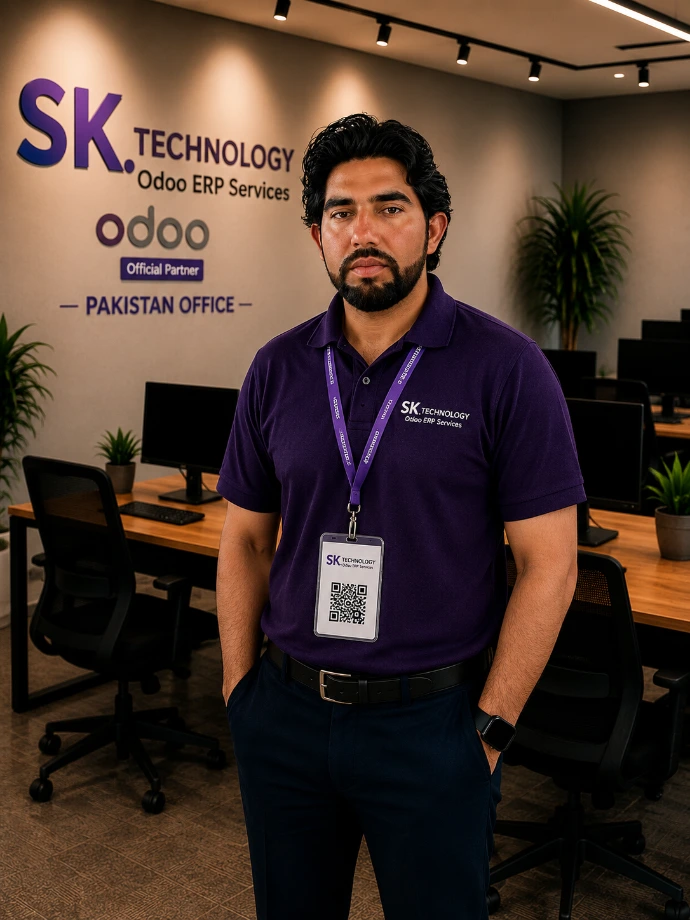
Assad Ullah
Certified Odoo Functional | Date Expert | Business Workflow Design | Accounting & Finance Expert | Odoo V18 Certified | 3+ Years of Experience
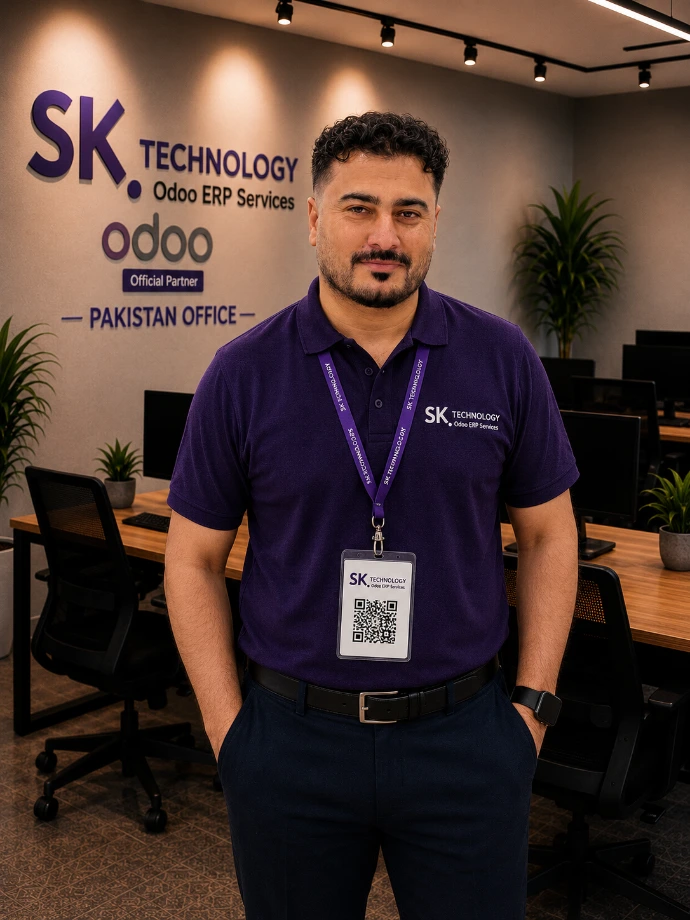
Sami Khan
Odoo Developer | Python Developer | PostgreSQL | Odoo Customization Expert | API Integrations | Third-Party API Integrations | 3+ Years of Experience
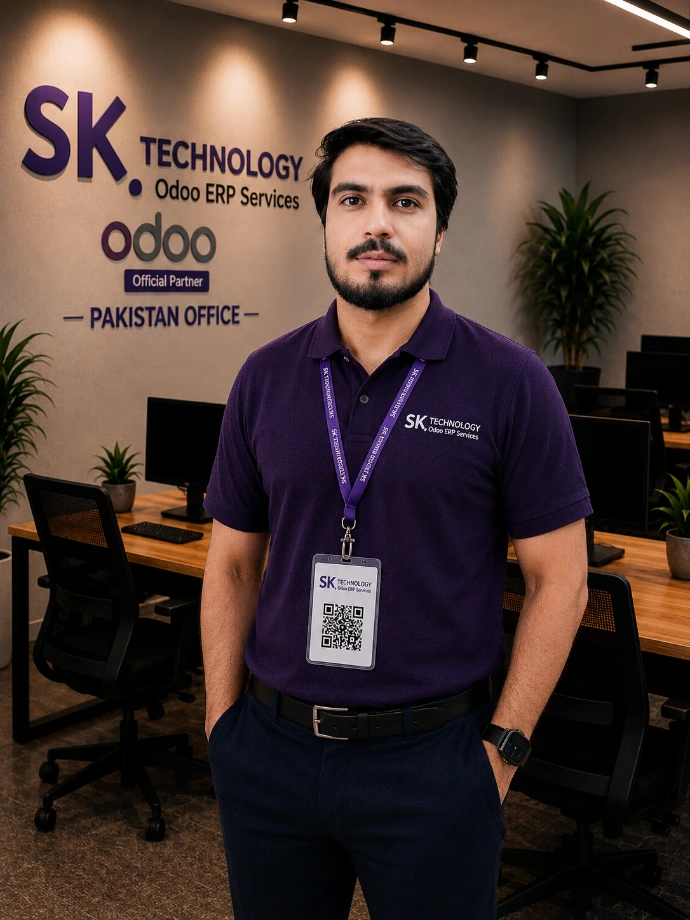
Ibrahim
Odoo Developer | Python Developer | PostgreSQL | Odoo Customization Expert | API Integrations | Third-Party API Integrations | 4+ Years of Experience
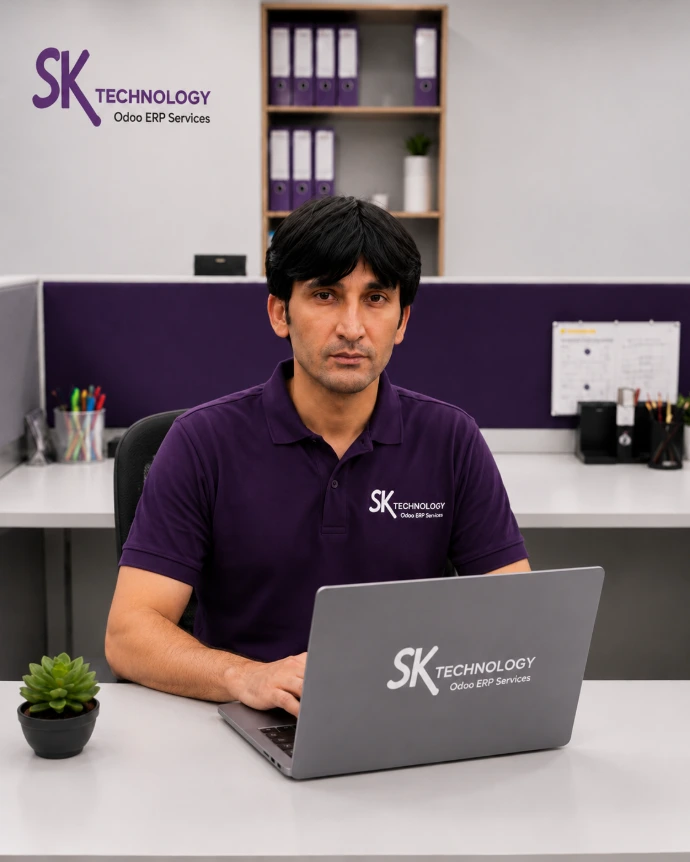
Luqman Khan
Odoo Functional | GAP Analysis | Business Workflow Design | Accounting | 1+ Years of Experience